The Keepsake Buying Journey on Shopify: From Engraving Choices to Order Accuracy
A playbook for engraved keepsakes on Shopify: a personalization spec, fields that enforce it, line item properties, a correction window, quotes for custom work and tests.
On this page
- Key takeaways
- Why keepsakes are different from other products
- Step 1: Write a personalization spec for each product
- Where the numbers come from
- Allowed characters
- Dates
- Step 2: Set up personalization in Shopify
- Line item properties
- Fields that enforce the spec
- Turn off autocorrect where it matters
- Charge for personalization clearly
- Show it back, everywhere
- Gift sets with personalized items
- Step 3: Handle requests that don't fit the spec
- Step 4: Know the edge cases
- Same product, different names
- Hidden spaces and line breaks
- Case
- Changes after ordering
- Proofs for high-value pieces
- Gifts sent straight to the recipient
- Returns and final sale
- Write product copy that sets expectations
- Step 5: Test the journey
- Step 6: Hand over to the workshop and customer service
- Worked example: an engraving brand fixes its locket page
- Scoping personalization properly
- Small details that cause remakes
- To Sum Up....
- FAQ
Short answer: Personalized keepsake gifts on Shopify go wrong in the gap between what the customer types and what the workshop engraves. Close that gap before you build anything. For each product, write a personalization spec: which fields it has, how many characters fit on each line, which characters and symbols the machine can engrave, how dates are written, and whether the customer sees a preview or approves a proof. Then build the fields so they enforce the spec, save each answer as a line item property, show it back in the cart and on every order document, and give customers a short window to correct mistakes before production starts. Handle anything outside the spec, such as logos, handwriting or bulk corporate orders, as a quote rather than a product option. Finally, publish a clear returns policy for personalized items that matches the law in each market you sell to.
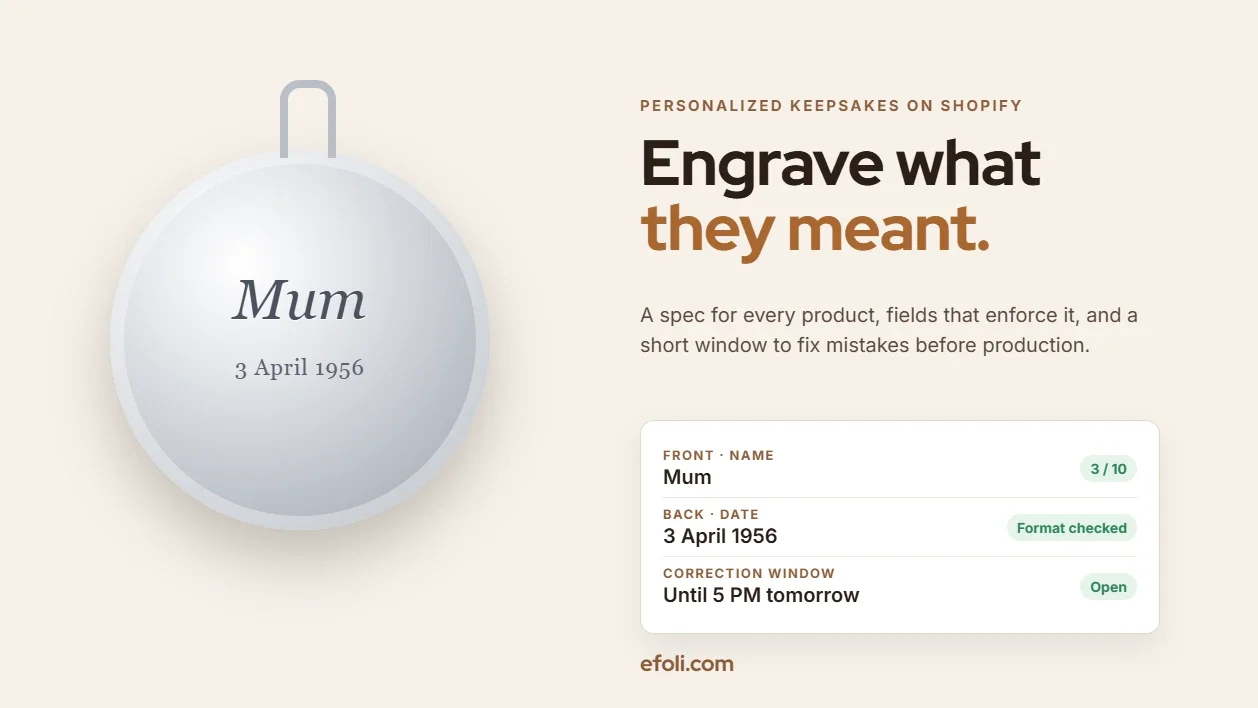
A customer orders an engraved silver locket for her mother's 70th birthday. She types "Mum, love always, 03/04/1956" into a single text box on her phone. Autocorrect changes "Mum" to "Mom". The engraver reads 03/04 as 4 March because that's how the workshop's machine is set up, but she meant 3 April. The locket arrives two days before the birthday with the wrong word and the wrong date.
Nobody did anything unusual. The customer typed what she meant, the workshop engraved what it received, and the store passed the text along without checking it. The result is a gift that can't be resold, a refund or remake the brand pays for, and a customer who probably won't come back.
This playbook is for engraving and gifting brands and the Shopify agencies that build their stores. It covers how to set requirements for personalization, how to set it up in Shopify, which edge cases cause most mistakes, how to test the journey, and what to hand over to the workshop and the customer service team.
Key takeaways
Write a personalization spec for each product before building any fields.
Limit characters to what physically fits, and say which characters the engraver can and can't do.
Use separate, labelled fields, not one free-text box.
Save personalization as line item properties so it travels with the order and shows on packing slips.
Show the customer exactly what will be engraved, in the cart and in the confirmation email.
Offer a short correction window before production, and a proof for high-value pieces.
Treat logos, handwriting and bulk orders as quotes, not product options.
Publish a returns policy for personalized items that matches the law in each market.
Why keepsakes are different from other products
Most ecommerce mistakes can be fixed by sending another item. Personalized keepsakes can't. Once a name is engraved, the item belongs to one customer.
That changes the economics of every error:
A wrong engraving is a total loss. The item usually can't be resold or re-engraved cleanly.
Deadlines are fixed. Keepsakes are bought for birthdays, weddings, anniversaries and memorials. A remake that arrives late often doesn't help.
Emotions run high. A misspelled name on a memorial gift feels very different from a wrong T-shirt size.
It also changes the legal position on returns. In the EU, the Consumer Rights Directive gives online shoppers a 14-day right of withdrawal, but Article 16 lists exceptions, including "the supply of goods made to the consumer's specifications or clearly personalised". That exception covers change-of-mind returns. It doesn't cover faulty goods or the brand's own mistakes, which still have to be put right. Other markets have their own rules, so check each one you sell to.
The practical lesson: almost every keepsake problem has to be prevented before production, because there's very little that can be fixed after it.
Step 1: Write a personalization spec for each product
The spec is the most important deliverable in the project. It's a short document for each product, agreed between the brand, the workshop and the agency, that describes exactly what the customer can personalize.
Spec item | Example for an engraved locket |
|---|---|
Fields | Front: one name. Back: up to three lines of message |
Characters per line | Front: 10. Back: 18 per line |
Allowed characters | Letters A–Z, numbers, . , ' & and spaces |
Not allowed | Emoji, most symbols, non-Latin scripts |
Case | Engraved exactly as typed |
Fonts | Script or serif, chosen from two options |
Dates | Written as day, month name, year: 3 April 1956 |
Preview | Text preview on the product page |
Proof | Not offered for this item |
Production time | 3 working days after the correction window |
Price | Front engraving included. Back engraving $15 |

Where the numbers come from
The character limits aren't marketing choices. They come from the physical item and the workshop's equipment. Ask the workshop to engrave test pieces at the maximum length in each font. If 18 characters on the back of a locket looks cramped in the script font, the limit for that font is lower.
Allowed characters
Engraving machines and fonts don't support every character. Ask the workshop which characters each font supports, then decide what to do with the rest. Common problem characters include:
Emoji, which phones make easy to type.
Curly quotes and apostrophes, which phones insert automatically.
Accented letters, such as é, ñ or ø, which some fonts don't include.
Non-Latin scripts, such as Arabic, Chinese or Cyrillic.
Symbols like hearts, infinity signs or stars.
If the brand wants to offer a heart symbol, make it a separate option rather than something customers type.
Dates
Date formats cause more errors than almost anything else. "03/04/1956" means 3 April in the UK and March 4 in the US. Avoid numeric dates entirely. Either ask for the date as separate day, month and year fields, or show the format you'll engrave, such as "3 April 1956", and let the customer type it that way.
Step 2: Set up personalization in Shopify
With the spec agreed, the setup is about making the product page enforce it.
Line item properties
Shopify stores personalization as line item properties. A property is a named value attached to one line in the cart, such as "Front engraving: Mum". Properties are set by inputs inside the product form, named in the format properties[Front engraving], or through the cart API.
Properties travel with the order. They appear in the cart, at checkout, in the order in the Shopify admin and in apps that read orders. A property whose name starts with an underscore is hidden from customers at checkout, which is useful for internal data, such as a font code the workshop uses.
Fields that enforce the spec
A single free-text box invites mistakes. Build separate fields that match the spec:
One field per line, labelled with where it goes: "Front (up to 10 characters)".
A character counter that shows how many characters are left.
A maximum length on each field, matching the spec.
Character checks that warn when the customer types something the engraver can't do, such as an emoji.
Required fields only where the item can't be made without them.
Font and placement choices as buttons or a dropdown, not typed text.
Date fields in a format that can't be misread.
Many personalization apps on the Shopify App Store add these fields without theme code, often with a live preview. If you build them in the theme, keep the validation in one place so it's easy to update when the workshop's limits change.
Turn off autocorrect where it matters
On mobile, autocorrect and auto-capitalisation change names. HTML inputs can turn these off with the autocorrect, autocapitalize and spellcheck attributes. It's a small detail, and it prevents "Mum" becoming "Mom".
Charge for personalization clearly
If back engraving costs $15, the price should change on the product page when the customer adds it, and the charge should appear in the cart. Options include a separate variant for "with back engraving", or a small add-on product added alongside the main item. Choose one approach and use it across the store, so the workshop knows how to read every order.
Show it back, everywhere
The customer should see exactly what will be engraved:
On the product page, as a text or visual preview.
In the cart, under the product name.
At checkout.
In the order confirmation email.
Check the confirmation email template and the packing slip template. Default templates don't always show every property in a clear way, and the workshop needs the text on the packing slip or production sheet, not just in the admin.
Gift sets with personalized items
Keepsake brands often sell sets, such as an engraved locket with a gift box and a card. A fixed set price with a bundle app can work well. The Push Bundle team's guide to fixed-price gift boxes, written by Anika, covers the format.
There's one thing to check carefully: how personalization travels when the engraved item is inside a bundle. Test whether the properties stay attached to the right component in the cart, in the order and on the packing slip. If they don't, keep the engraved item as its own line and offer the gift box as a separate add-on. Push Bundle is a Shopify cross-sell bundle app that offers fixed, cross-sell and build-a-box bundles, with the box-style bundles on its Growth plan at $14 a month with a 14-day trial at the time of writing, so test your exact setup before you launch.
Step 3: Handle requests that don't fit the spec
Some customers want things no product option can handle well: a company logo, a child's drawing, handwriting from a letter, an engraving in a script the font doesn't support, or 150 engraved pens for a corporate event. Forcing these through a product page leads to mistakes.
A quote flow works better. The customer describes what they want, uploads the artwork or the handwriting, and the brand replies with a price and a proof. QuotWay adds a quote button and request form to Shopify, with a proposal editor and a one-click draft order on the free Lite plan for up to 10 quotes a month. File attachments and custom form fields are on the Starter plan at $29 a month, and paid plans include a 14-day trial at the time of writing.
Corporate keepsake orders are a good example. A company ordering 150 engraved items with different names needs a list, a proof and probably a different price. Anika's guide to corporate gift orders on Shopify covers how to handle the volume side.
Step 4: Know the edge cases
These are the mistakes that come up again and again in keepsake stores. Each one needs a decision before launch.
Same product, different names
A customer orders two lockets, one for each grandmother. If they change the quantity to 2, both lockets get the same engraving. The cart needs to treat each personalized item as its own line. Make it clear on the product page: "Ordering more than one with different engraving? Add each one separately." Some apps handle this automatically by adding a new line for each set of properties.
Hidden spaces and line breaks
A name typed as "Anna " with a trailing space, or a message pasted from another app with a line break, can shift the engraving's position. Trim spaces and line breaks before the text is saved, and tell the workshop how text was cleaned.
Case
"ANNA", "anna" and "Anna" are all valid choices, and the customer may have meant any of them. The spec should say whether you engrave exactly as typed. If you do, the preview should show the exact case.
Changes after ordering
Customers often notice a mistake in the confirmation email. Give them a simple way to fix it: a link or a reply address, and a clear deadline, such as "You can change your engraving until 5 PM tomorrow." After that, production starts.
The workshop needs to know which orders are still inside the correction window. An order tag, a production hold or a simple rule such as "don't engrave orders less than 24 hours old" all work. Choose one and write it down.
Proofs for high-value pieces
For expensive or complex pieces, a proof is worth the delay. Send the customer an image or a description of exactly what will be engraved, and start production only when they approve. Make the proof step visible on the product page, so the customer knows to expect it and plans for the extra time.
Gifts sent straight to the recipient
When the order ships directly to the recipient, the packing slip shouldn't show the price, and the customer may want a gift message. Gift messages are a different field from the engraving. Keep them separate so the workshop doesn't engrave "Happy birthday, love from Sam" onto the locket.
Returns and final sale
Shopify's self-serve returns let you set final sale items by product or by collection, so personalized products can be excluded from change-of-mind returns. Note that bundles can't be set as final sale. Whatever you set up, the returns policy should say plainly what happens in three situations:
The customer changes their mind.
The customer made a typing mistake.
The brand made a mistake, or the item is faulty.
The third must always be put right. Many brands also offer a reduced-price remake for the second, which keeps the customer and costs less than a full refund.
Write product copy that sets expectations
The product page does more than collect text. It tells the customer what they're agreeing to, and clear copy prevents many of the mistakes and disputes above. Keep it short and put it next to the fields, not in a separate FAQ.
Say what fits. "Up to 10 characters on the front, including spaces." Customers accept limits much more easily when they see them before they type.
Say what the engraver can't do. "We can engrave letters, numbers and . , ' &. We can't engrave emoji." A short line saves an email later.
Show real examples. A photo of the locket engraved at the maximum length, in each font, is more useful than a mock-up with a short name. It shows the customer how a long message will actually look.
Say how long it takes, and when the clock starts. "Engraved within 3 working days after your correction window closes." If there's a proof step, say how it affects timing.
Say what happens if something's wrong. Link to the personalized items policy in one sentence: what you do if you made a mistake, and what you offer if the customer did.
Ask them to check. A simple prompt above the add-to-cart button, such as "Please check spelling and dates. We engrave exactly what you type," works better than a long disclaimer at checkout.
Copy like this also helps with search and AI answers. Shoppers often ask questions such as "how many characters fit on an engraved locket?" A product page that answers them plainly is easier to find and easier to quote.
Step 5: Test the journey
Test with real phones and real names, not just a desktop browser and "Test".
# | Test | Expected result |
|---|---|---|
1 | Type the maximum characters on each line | Field accepts it; preview fits |
2 | Type one character over the limit | Field stops or warns |
3 | Type an emoji and a curly apostrophe on a phone | Warning shown or character converted |
4 | Type a name with an accent, such as "Zoë" | Accepted or a clear warning, per spec |
5 | Leave a trailing space and paste a line break | Text cleaned before saving |
6 | Add the same locket twice with different names | Two separate cart lines |
7 | Add back engraving | Price updates; charge shows in cart |
8 | Buy the locket inside a gift set | Engraving stays with the locket on the order |
9 | Check the confirmation email | Every field shown clearly |
10 | Print the packing slip | Engraving text readable for the workshop |
11 | Change the engraving inside the correction window | Order updated; workshop sees the change |
12 | Try to return a personalized item through self-serve returns | Blocked as final sale, policy shown |

Run tests 3 to 5 on both iPhone and Android, because autocorrect and keyboards behave differently.
Step 6: Hand over to the workshop and customer service
The store is only half the system. The workshop and the customer service team need to work from the same rules.
For the workshop:
The spec for each product, including fonts and character limits.
Where the engraving text appears on each order: packing slip, production sheet or an app.
The correction window rule, and how to tell which orders are ready.
What to do with an order that breaks the spec, for example a character the font doesn't support.
For customer service:
How to change an engraving inside the correction window.
The returns policy, with the three situations above.
How to send a proof and record approval.
When to send a customer to the quote form instead.
For the brand team:
How to add a new personalized product, starting from the spec template.
Which settings control fields, limits and prices.
How to review mistakes each month: what went wrong, and which spec or field change would prevent it.
Worked example: an engraving brand fixes its locket page
Here's how a fictional brand, Larkspur Engraving, might apply this playbook. The details are illustrative.
The problem: about one in every few dozen locket orders needed a remake, mostly because of date mix-ups, autocorrected names and emoji the machine couldn't engrave.
The changes:
A spec for the locket. Front: 10 characters. Back: three lines of 18. Letters, numbers and five symbols. Dates as "3 April 1956".
Separate fields with counters, limits and character warnings. Autocorrect and auto-capitalisation turned off.
A date picker for the back engraving that writes the date in the agreed format.
A text preview on the product page, and the exact engraving shown in the cart and confirmation email.
A correction window until 5 PM the next working day, with a link in the confirmation email.
A quote form for logos and handwriting, using a quote app.
Final sale for personalized products in self-serve returns, with a policy that offers a half-price remake for customer typos.
A packing slip update so the workshop reads the engraving straight from the slip.
The result: fewer remakes, fewer "can you change my engraving?" emails after production, and a workshop that stopped guessing at dates. The brand now reviews every remake monthly and adjusts the spec when a pattern appears.
Scoping personalization properly
For agencies, personalization often gets scoped as "add a text box to the product page". A better scope includes:
Spec workshop with the brand and workshop, per product.
Field build with limits, character checks and previews.
Cart, email and packing slip updates.
Correction window and proof process.
Quote flow for requests outside the spec.
Returns setup and policy.
Device testing on iPhone and Android.
Handoff to the workshop, customer service and the brand team.
If you're also building a gift guide or gifting campaign around these products, Anika's guide to shoppable gift guides shows how to sell from editorial content, and eFoli's guide to wedding favors on Shopify covers personalization at a larger scale.
Small details that cause remakes
One free-text box for everything. Separate fields stop most mistakes.
Character limits based on guesswork. Engrave test pieces at the maximum length.
Numeric dates. "03/04" means different things in different countries.
Leaving autocorrect on. It changes names on phones.
Quantity instead of separate lines. Two lockets with different names need two lines.
Engraving text hidden in the admin. Put it on the packing slip or production sheet.
Mixing gift messages with engraving. Keep them in separate fields.
A vague returns policy. Say what happens for change of mind, customer typos and brand mistakes.
To Sum Up....
Keepsake mistakes happen between the customer's keyboard and the workshop's machine. Write a spec for each product, build fields that enforce it, save everything as line item properties and show it back at every step. Give customers a short window to fix mistakes, send proofs for valuable pieces, move logos and bulk orders to a quote flow, and publish a returns policy that's fair and lawful. Then the name on the locket is the name she meant.
FAQ
How do I add engraving options to a Shopify product?
How do I stop customers from making mistakes in personalization?
Can customers return personalized items?
How do I sell engraved items with different names in one order?
What should I do with logo or handwriting engraving requests?
Should I send proofs for engraved gifts?

Anika Anamta Mehnaz
This article is written by Anika Anamta Mehnaz, a Content Writer and Content Marketing Strategist specializing in Shopify, eCommerce, and SaaS. With over four years of content writing experience, she creates SEO and AI search-optimized content that helps Shopify merchants make better business decisions through practical, research-backed insights. Her work covers Shopify apps, product variants, bundles, discounts, B2B commerce, and conversion-focused strategies. Outside of work, Anika enjoys watching anime, reading John Grisham novels, and discovering new ideas in digital marketing and e-commerce. If you enjoy discussing Shopify, content marketing, or online growth, feel free to connect with her. Twitter: https://x.com/mehnaz2201 Medium: https://medium.com/@mehnaz_78932
Keep reading
View all articles →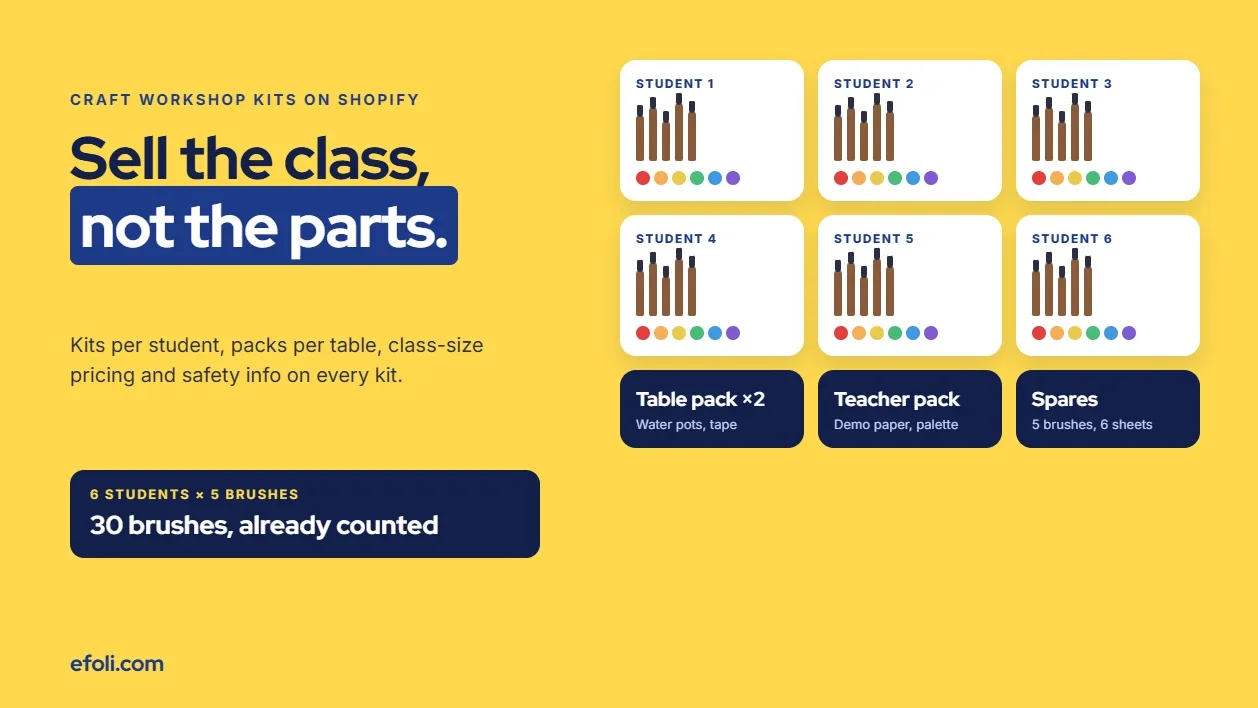
Six Students, Six Kits, Thirty Missing Brushes: Why Craft Workshop Kits Break on Shopify
November 17, 2026 • 17 min read
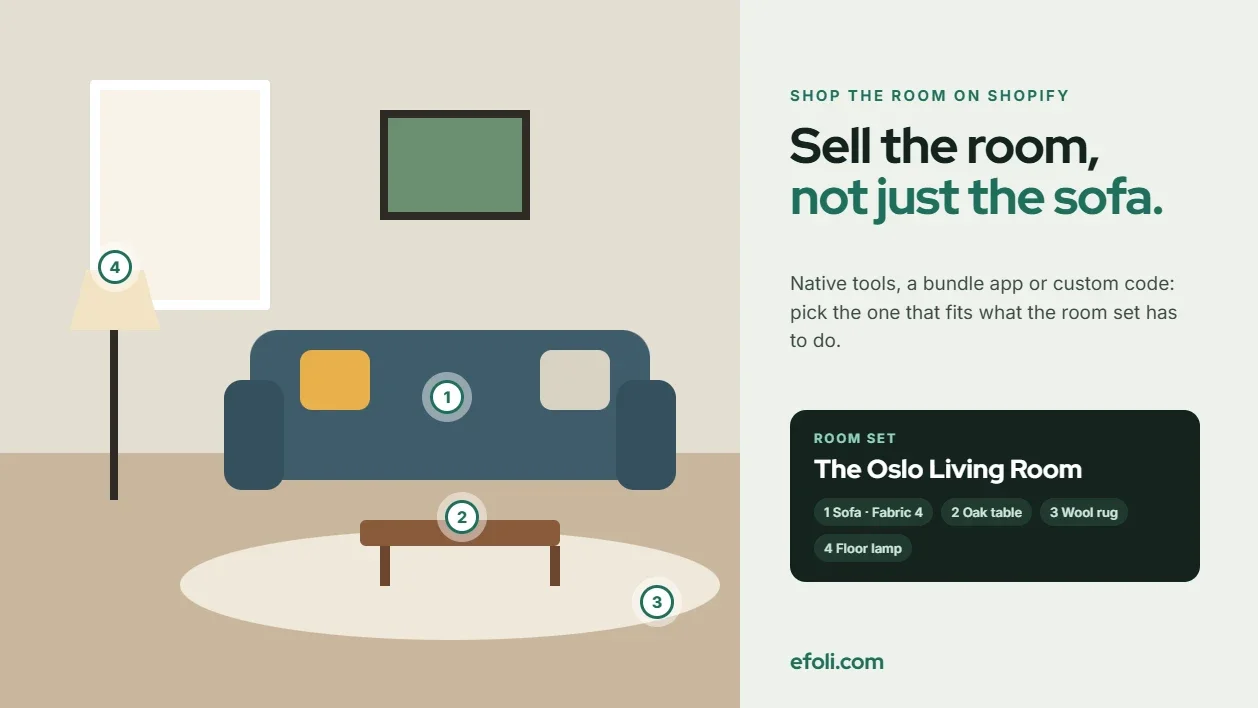
Shop the Room on Shopify: Native Tools, Push Bundle or Custom Code?
November 17, 2026 • 18 min read
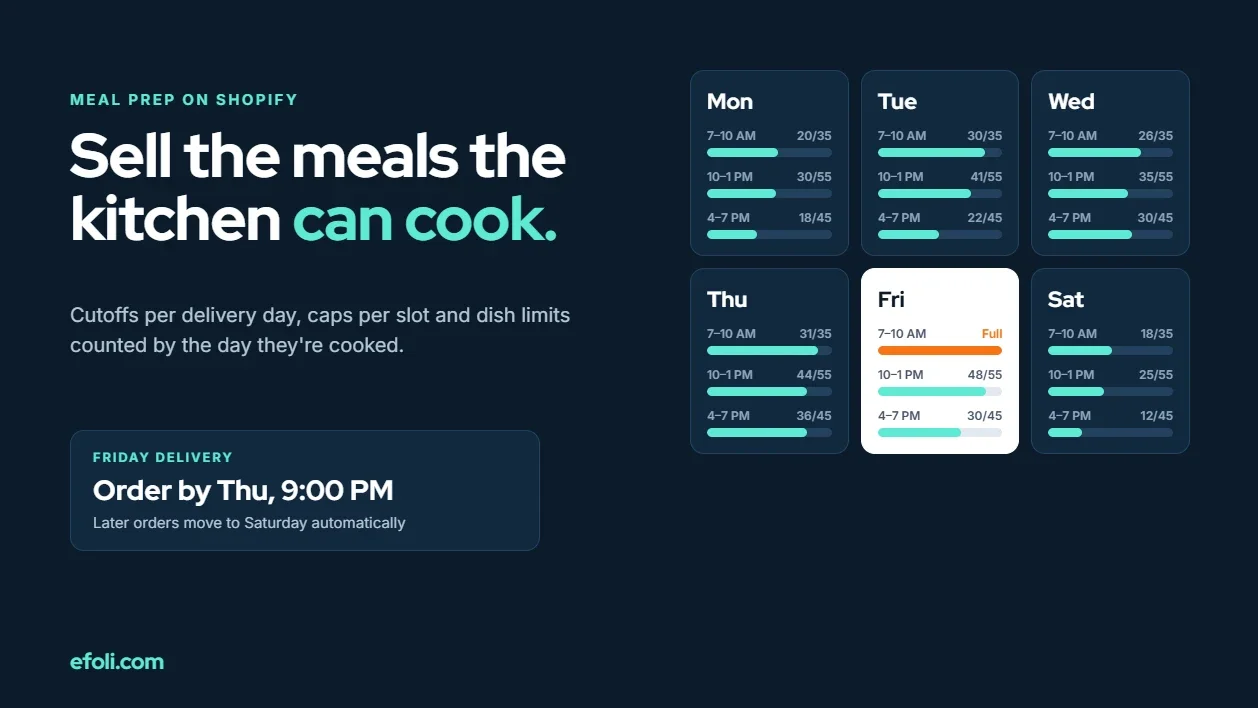
You Sold Tomorrow's Lunch. The Kitchen Already Closed Today's Prep List.
November 17, 2026 • 18 min read